How to make a PDF accessible
Updated . A 12 minute read.
Scroll sideways to see where each fix belongs.
| What the reader meets | Criterion | Fix it in the source file | Fix it in the PDF |
|---|---|---|---|
| No tags: the whole file reads as one run of text | 1.3.1 Info and Relationships A | Export with tags switched on | Add tags, then correct the tag tree |
| Headings are big bold text, not headings | 1.3.1 Info and Relationships A | Use the built-in heading styles | Retag them as H1 to H6 |
| Columns and sidebars read in the wrong order | 1.3.2 Meaningful Sequence A | One text flow, no floating text boxes | Fix the tag order |
| Photos and charts say nothing, or logos and lines are read aloud | 1.1.1 Non-text Content A | Write alt text, mark decorative images | Alt text on Figure tags, decoration as artifacts |
| Table cells read with no column or row names | 1.3.1 Info and Relationships A | Set a header row, avoid merged cells | Header cells (TH) with their scope |
| Form fields announced as "edit text" with no name | 4.1.2 Name, Role, Value A | Rarely survives export | A tooltip (name) on every field |
| The title bar shows a file name like scan_0042.pdf | 2.4.2 Page Titled A | Fill in the Title property | Set the title and show it in the title bar |
| English is read with the wrong voice and accent | 3.1.1 Language of Page A | Set the document language | Set the language in the file's properties |
| A scanned page is a picture: nothing to read | 1.4.5 Images of Text AA | Go back to the digital original | Run OCR, then tag |
| A 40-page report with no way to jump around | 2.4.5 Multiple Ways AA | Export headings as bookmarks | Make bookmarks from the headings |
| Pale grey text on white | 1.4.3 Contrast (Minimum) AA | Change the colours | Hard to fix here: go back to the source |
All but the form fields are cheaper to fix in Word, Docs or InDesign than in the PDF. That is the order this guide follows: decide whether the file should stay a PDF at all, fix the source, then repair and check the PDF.
First decide: fix it, rebuild it or replace it
The cheapest accessible PDF is often no PDF at all. A menu, a price list or an opening-hours sheet that changes every few months is a web page wearing a PDF costume: each new version has to be made accessible again, while a page on your site inherits its headings, contrast and focus rules from the template once.
What the UK government tells its own publishers
HTML is the most accessible format for publishing documents. It should be your first choice whenever possible.
Source: GOV.UK, publishing accessible documents. It is UK guidance, not US law, but the reasoning travels.
Answer four questions about one file and the box suggests a route.
Pre-filled for a restaurant menu that changes each season and was made in Word. Change the answers for your file.
Route: Replace it with a web page
A file that changes every season has to be fixed again every season. Put the text on a page of your site, where headings, alt text and contrast are fixed once in the template.
These routes are our house judgement for a small business, not a WCAG rule.
What the Title II rule says about old PDFs
For state and local governments, the DOJ web rule lists exceptions in 28 CFR 35.201. One covers PDFs and other office files posted before the government's compliance date, unless they are currently used to apply for, gain access to or take part in its services. Another covers archived content: made before that date, kept only for reference, research or recordkeeping, not changed after it was archived, and stored in an area clearly marked as archived. A business is not covered by this rule; see the DOJ Title II web rule for who is. This is general information, not legal advice. For your own situation, ask a lawyer.
PDF/UA and WCAG: which one you are held to
Two standards meet in a PDF. PDF/UA-1 is ISO 14289-1, the standard for the file itself: all real content tagged in a logical reading order, decoration marked as artifacts, images in Figure tags with alternative text, fonts embedded. Its requirements are consistent with WCAG 2.0, and a later part, ISO 14289-2 (PDF/UA-2), exists. WCAG sets the tests from the reader's side, and those are the ones rules point to.
- The Section 508 Standards incorporate WCAG 2.0 Level A and AA by reference, and excuse non-web documents from four criteria: 2.4.1, 2.4.5, 3.2.3 and 3.2.4. What a federal reviewer checks is in 508 compliant PDF.
- The DOJ Title II rule's technical standard is WCAG 2.1 Level AA (not 2.2), and it names PDFs among the files it covers.
- For a business, DOJ has no detailed web regulation and names WCAG as helpful guidance. A PDF on your site is part of your site, so "ADA compliant PDF" in practice means a PDF that meets WCAG 2.1 Level AA.
This guide uses the WCAG 2.2 numbers; content that conforms to WCAG 2.2 also conforms to 2.0 and 2.1. The versions are explained in what is WCAG.
Fix it at the source, then export with tags
Almost everything a PDF needs can be set in the program that made it, and it carries into the export: real heading styles, alt text on pictures, a header row on tables, real lists, the document language, and a title in the file's properties. Set those first. What the export setting then decides is whether that structure reaches the PDF as tags or is thrown away.
Word and PowerPoint
Microsoft's own steps start with its Accessibility Checker, run before you export. Then, on Windows: File, Save As (or Save a Copy), choose PDF, select Options, and make sure Document structure tags for accessibility is ticked. On a Mac, in the export dialog choose PDF and Best for electronic distribution and accessibility, which Microsoft says uses its online service and gives you a tagged PDF. The Word side is covered in accessible Word documents and slides in accessible PowerPoint slides.
LibreOffice
In the PDF export options, Universal Accessibility (PDF/UA) follows ISO 14289 and switches on Tagged PDF for you; it cannot be turned off while PDF/UA is selected. Export outlines turns Writer headings into bookmarks.
Google Docs and InDesign
Google's Docs help pages we read today say nothing about tags in a downloaded PDF, so do not assume them: export one file and run it through the PDF accessibility quick check. If it reports no tags, download the document as a Word file and export the PDF from Word. In InDesign, tagging is a setting of the PDF export, and the order of the layout's text frames decides the reading order; Adobe's InDesign help names the current options.
Save As or Export, never Print to PDF
A print-to-PDF driver sees only the printed page, so the file usually comes out with no tags, whatever you set in the source. If a PDF you made reads as untagged in the quick check, this is the first thing to look at.
Check and repair the PDF in an editor
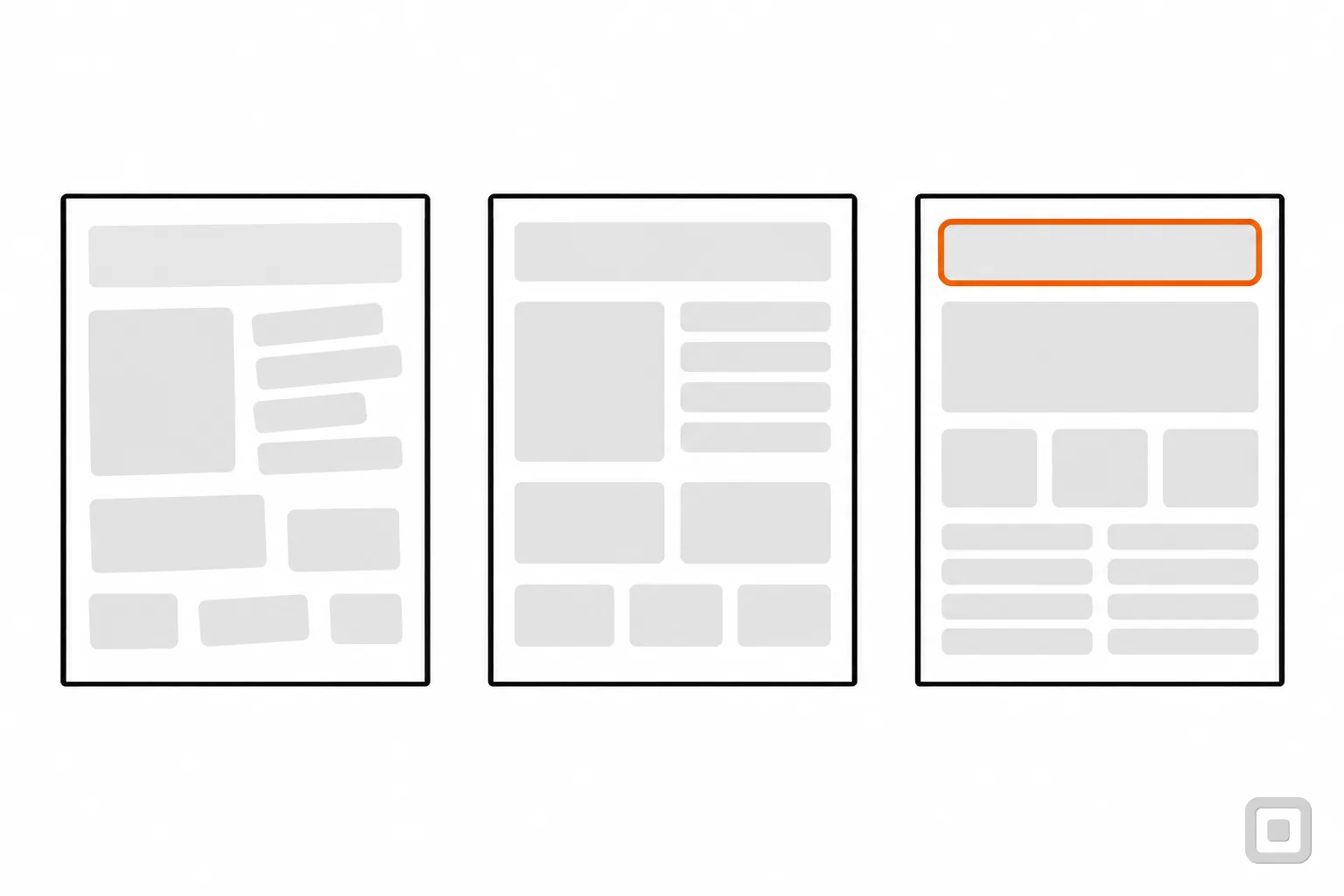
Whatever the PDF came from, open it in a PDF editor and work through the eight steps below in this order: each one depends on the one before. Adobe Acrobat Pro is the common choice; the alternatives, and which of them edit the tag tree directly, are in PDF remediation software compared. Each step names W3C's PDF technique for it. The techniques are examples of ways to meet WCAG, not requirements; what counts is the success criterion.
2. Reading order
A screen reader follows the order of the tags, not the look of the page. Two-column layouts, pull quotes, sidebars and footnotes are where it goes wrong. Drag the tags into the order a person would read aloud, and check the tab order of links and fields matches it.
Criteria 1.3.2, 2.4.3. W3C technique PDF3.
3. Headings
Retag every heading as H1 to H6, one H1 for the document title, no skipped levels. Headings are how a screen reader user skims: in NVDA the H key jumps to the next one, so a file without them has to be read from the top.
Criterion 1.3.1. W3C technique PDF9.
4. Alt text and artifacts
Give each meaningful image, chart and signature graphic alt text on its Figure tag that says what it tells the reader. Mark logos repeated on every page, lines, borders and background shapes as artifacts so they are skipped. The rules for good alt text are the same as on the web; the alt text check tests one at a time.
5. Tables
Check each data table has a Table tag with rows, header cells (TH) and data cells (TD), and that each header says whether it labels a column or a row. Split merged cells where you can; the headers are what a screen reader reads out as you move between cells, and merged cells scramble them. A table used only for layout should not be a table at all.
Criterion 1.3.1. W3C technique PDF6.
6. Form fields
Every fillable field needs a name a screen reader can announce, which PDF editors set as the field's tooltip. Write it the way the printed label reads ("Date of birth, MM/DD/YYYY"), give radio buttons and check boxes a group name, and tab through the form to confirm the order.
7. Title and language
In the document properties, type a title that says what the file is, and set the viewer to show the title instead of the file name. Set the document language too; a passage in another language gets its own language on its tag (PDF19, for 3.1.2 Language of Parts).
8. Bookmarks for long files
For anything longer than a few pages, generate bookmarks from the headings so readers can jump. W3C lists bookmarks as an advisory technique for 2.4.5 Multiple Ways, and the Section 508 Standards excuse non-web documents from that criterion, but on a 40-page report they are the difference between usable and not.
Criterion 2.4.5. W3C technique PDF2.
What WCAG asks
Information, structure, and relationships conveyed through presentation can be programmatically determined or are available in text.
1.3.1 Info and Relationships, Level A. In a PDF, "programmatically determined" means the tags: a heading that only looks like a heading fails it.
Scanned PDFs: get text first
A scanned page is a photograph. A screen reader finds nothing to read, search finds nothing, and no tag can be attached to text that is not there. The first job is optical character recognition (OCR), which W3C lists as technique PDF7 for 1.4.5 Images of Text (Level AA): use real text rather than a picture of it, where the technology can.
OCR is the start, not the finish. It misreads small print, columns and handwriting, so proofread the text layer against the page, then do the full repair pass above: OCR adds text, not structure. Before you start, ask whether a digital original exists somewhere: exporting it again takes minutes, while a scan of a ten-page printed form can take longer to fix than to retype into a template.
How to tell if a PDF is a scan
Try to select a word with the cursor. If the whole page highlights as one box, or nothing selects, there is no text layer. The PDF accessibility quick check reads the pages' drawing instructions and tells you which pages carry text and which draw only images.
A backlog of scans is the classic case for a service rather than in-house work; what is PDF remediation explains what a service does with them.
Run a checker, and read what it cannot see
Check in two passes. For a first look, the PDF accessibility quick check reads the file in your browser and reports whether it is tagged, titled, has a language and a text layer, and whether its permissions block assistive technology. It is a triage tool, not a validator.
For the full check, use a PDF/UA checker. PAC (PDF Accessibility Checker) is a free checker published by axes4. It checks many PDF/UA and WCAG requirements automatically; a visual check by a person is still needed. Current version PAC 2026.1 (25 March 2026); it runs on Windows 10 and 11 only. Acrobat Pro has its own full check, and the free PDFix Desktop Lite also runs on a Mac; both are compared in PDF remediation software compared.
A clean report is not a finished PDF
axes4 says that about two thirds of the requirements in the Matterhorn Protocol, the test protocol for PDF/UA, can be checked by software and the rest need a person. No checker can tell whether alt text is true to the picture, whether a heading says what follows it, or whether the reading order makes sense. DOJ says the same of web checkers: a clean report does not mean a site is accessible.
Listen to it: the manual screen reader pass
Ten minutes with a screen reader catches what the checker cannot. NVDA is a free screen reader for Windows, and its user guide lists Adobe Reader among the programs it reads in browse mode. Open the PDF, start NVDA, and work through five questions:
- Does the title bar say what the file is? Press NVDA+T: it reads the window title.
- Do the headings outline the document? Press H to jump from heading to heading, or 1 to 6 for a level.
- Does it read in the right order? Let it read a two-column page and a sidebar aloud.
- Do tables make sense? Press T to reach a table and move through a few cells.
- Can you fill the form? Press F for each field and listen for its name.
A sighted colleague can get part of the way without learning a screen reader: PAC's screen reader preview shows what will be read and in what order. The few commands worth learning are in screen reader testing for owners.
Quick reference
The whole job, in order
- Ask if it should be a web page instead.
- Fix headings, alt text, table headers, title and language in the source.
- Export with tags (Save As or Export, never Print to PDF).
- Run the quick check: tagged, titled, language set, text on every page.
- Repair in an editor: tags, order, headings, alt, tables, fields, title, bookmarks.
- Run PAC or your editor's full check and fix what it finds.
- Listen to it with a screen reader: title, headings, tables, fields.
If the list is longer than the time you have, the files most worth the effort are the ones people need to act: forms, booking and ordering documents, anything a customer must read to use your service. Too many files, or too complex? Services that hand back tagged, checked files are compared in PDF remediation services compared.
Related
- PDF accessibility quick checkDrop a PDF to see what the file itself shows: tags, title, language, text layer and fields.
- PDF remediation software comparedDesktop and cloud tools to tag and fix PDFs yourself, from tag editing to a PDF/UA check.
- PDF remediation services comparedServices that tag and fix PDFs to PDF/UA and WCAG, judged on what they hand back.
- Accessible Word documents9 min read
- 508 compliant PDF: what a federal reviewer checks12 min read