How to make a Word document accessible
Updated . A 9 minute read.
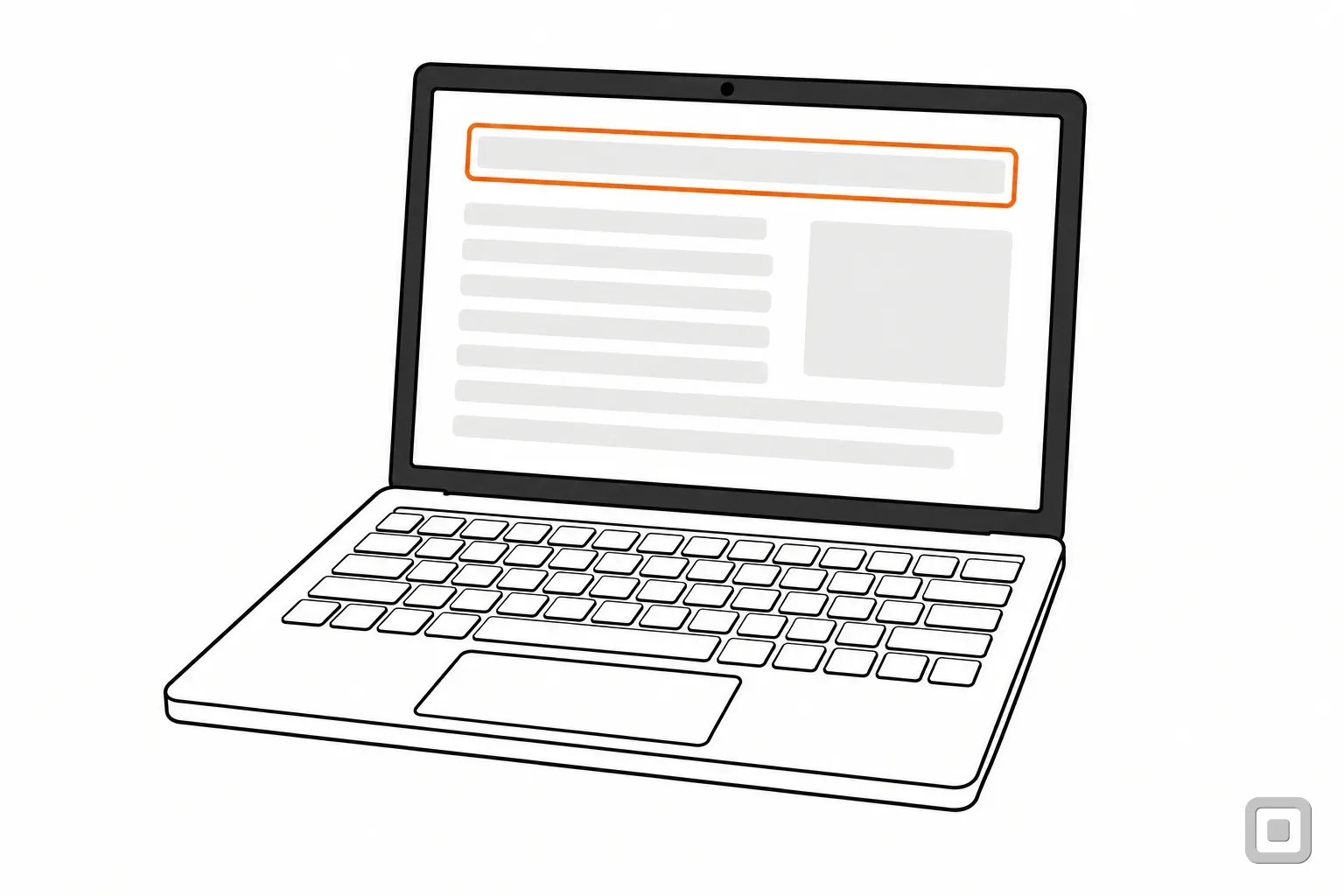
One staff handbook, two ways, and what Word itself can find in each
The page, as everyone sees it
Opening and closing
Body text…
Unlocking the front door
Body text…
Counting the cash drawer
Body text…
Holidays and leave
Body text…
Booking time off
Body text…
Style box: Normal, made bold and larger
Navigation pane, Headings tab
Nothing listed. To Word, and to a screen reader, these are five bold paragraphs.
The page, as everyone sees it
Opening and closing
Body text…
Unlocking the front door
Body text…
Counting the cash drawer
Body text…
Holidays and leave
Body text…
Booking time off
Body text…
Style box: Heading 1, Heading 2
Navigation pane, Headings tab
- Opening and closing
- Unlocking the front door
- Counting the cash drawer
- Holidays and leave
- Booking time off
Try it on your own file: press Ctrl+F, or choose View > Navigation Pane, and open the Headings tab. If your section titles are missing there, a screen reader user cannot jump between them either. Headings typed inside tables, text boxes, headers or footers never show in that list.
Headings and lists: use the styles, not the font size box
A heading only counts as a heading if Word knows it is one. Put the document's name in the built-in Title style, each main section in Heading 1 and the parts inside it in Heading 2, without skipping a level. Then change how they look by modifying the style, so the look and the structure never part company. That is what 1.3.1 Info and Relationships asks for: structure that is shown visually is also there in code. Write each heading so it says what the section is about (2.4.6 Headings and Labels); "Section 2" tells a listener nothing.
Keep anything important out of the header and footer. Microsoft's accessibility guide for Word warns that screen readers do not read those areas, so a phone number or a revision date that lives only in the footer is lost.
Lists
Use the Bullets and Numbering buttons rather than typing a dash or "1." by hand, and keep each list in one piece. Microsoft notes that a plain paragraph dropped into the middle of a list can make a screen reader announce the wrong number of items, or tell the listener they have left the list halfway through.
Text boxes hide structure
A heading typed into a text box or a table cell does not appear in the Navigation pane, and floating boxes are easy to read in the wrong order. Keep running text in the body of the page and move side notes into it.
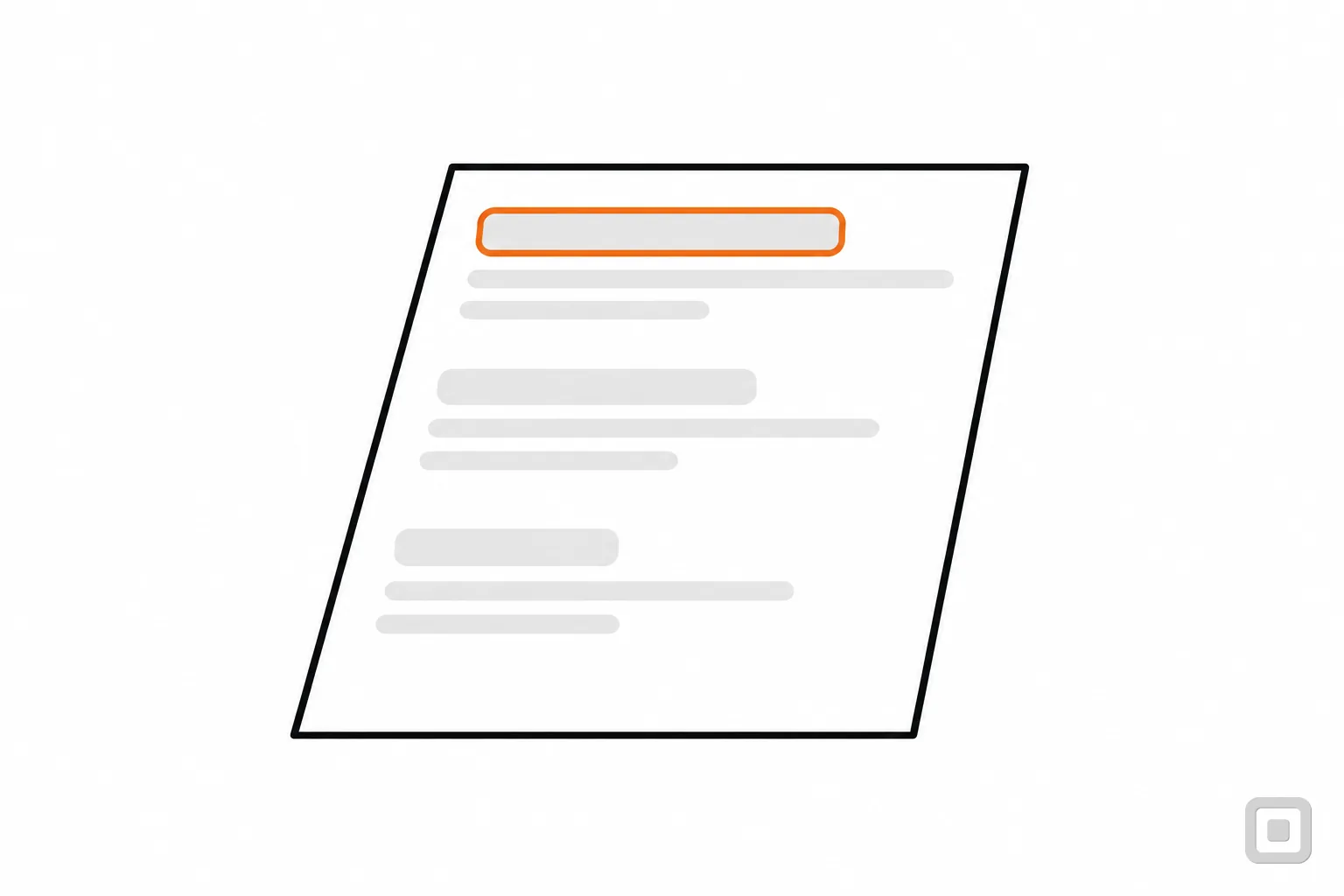
Pictures: alt text, or mark it as decorative
Right-click the picture and choose View Alt Text, or select it and choose Picture Format > Alt Text. In the Alt Text pane, write what the picture tells the reader in this document; Microsoft's alt text steps suggest one or two sentences. A floor plan of the shop needs the route it shows; the same plan used as a page border needs nothing.
For that second kind, tick Mark as decorative in the same pane. The text box greys out and, in Microsoft's words, people who use screen readers will hear that these objects are decorative. The choice between the two is explained in decorative images and alt text, and worked examples are in alt text examples.
- Recent Microsoft 365 versions can write alt text for you; the setting is under File > Options > Accessibility. Read every suggestion before you keep it.
- A picture of text, such as a screenshot of a price list, needs that text in the document as well (1.4.5 Images of Text). Microsoft says the same: repeat it in the body.
- A diagram built from many shapes: Microsoft suggests flattening it into one picture with one alt text, so a screen reader does not step through every arrow.
Tables: one header row, no merged cells
Use a table for data, never to line up a layout. Click in the table and, on the Design tab that appears with it, choose Header Row in the Table Styles Options group, then type a real name in each top cell. Microsoft explains why merged and split cells matter: a screen reader keeps its place by counting cells, and a merged cell throws the count off for the rest of the table. Blank rows and columns suggest the table has ended.
Scroll sideways to see every column.
| Problem | What the checker says | How to find it |
|---|---|---|
| No header row | Error: Tables specify column header information | Run the checker |
| Merged, split or nested cells | Warning: Table has a simple structure | Run the checker |
| A completely blank row or column | Not one of its rules | Look at the table |
| A fixed-width table that will not fit a phone | Not one of its rules | Open the file on a phone |
Links that make sense when read alone
Screen reader users often pull up a list of every link in a document and choose from it. A list of five "click here" links is useless. Select the words that name the destination, such as "2026 catering price list", and put the link on those. Microsoft's advice is to use the title of the page you link to. That is 2.4.4 Link Purpose (In Context).
Word also offers a ScreenTip, a box that Microsoft describes as appearing when the cursor hovers over the link. Treat it as an extra, not a fix: it needs a hover to show, so put the meaning in the link text itself.
Colour and contrast in a document
The rules are the same as on a web page: text needs a contrast ratio of at least 4.5:1 against its background, and large-scale text at least 3:1 (1.4.3 Contrast (Minimum)). Word makes the second part easy, because WCAG defines large-scale text in points and Word's font size box is in points: 18 pt, or 14 pt bold, and up. Check a colour pair in the contrast check; the thresholds are explained in colour contrast requirements.
- Leave body text on the Automatic font colour. Microsoft recommends it so the text still shows correctly when a reader switches on a high contrast mode.
- Word's checker measures text against page colour, cell shading, highlight, text box and shape fills, headers, footers and links. Section508.gov points out that checkers like it cannot test images of text, so check those by eye.
- Colour used as the only signal, such as overdue invoices in red, is on Microsoft's own list of what the checker cannot detect. Add a word ("Overdue") or a symbol. The reasoning is in use of colour.
Title and language: two settings the checker does not list
Two settings sit outside the text itself, and neither is on the Accessibility Checker's published list of rules, so nothing will remind you about them.
The document title
Choose File > Info and type a title into the Title property on the right (or open Properties > Advanced Properties and use the Summary tab). This is not the file name and not the Title style on page one. A PDF made from the file can show it in the viewer's title bar, which W3C's technique PDF18 uses to meet 2.4.2 Page Titled; without it, the title bar shows a file name such as handbook_v7_final.pdf.
The language
Select all the text, then Review > Language > Set Proofing Language, and pick the language the document is written in. A screen reader uses it to choose its voice and pronunciation (3.1.1 Language of Page). A paragraph in Spanish inside an English letter gets the same treatment on its own: select it and set Spanish (3.1.2 Language of Parts).
The checker is not the finish line
Microsoft says it plainly: the checker cannot detect every issue, so review the document yourself too. The title, the language and colour-only meaning are three places to look first.
Run the Accessibility Checker, and know what it ranks low
Choose Review > Check Accessibility. The Accessibility pane opens on the right with its Inspection Results; select an issue to jump to it, and open the arrow beside it for Recommended Actions, which apply a fix for you. If your version has no button there, Microsoft's route is File > Info > Check for Issues > Check Accessibility. Word also runs the checker in the background and puts a reminder in the status bar.
The pane sorts what it finds into Errors, Warnings and Tips, and the ranking is worth knowing. A picture without alt text, or with a file name as its alt text, is an Error. So is a document whose permission settings block screen readers from its content. Low contrast is a Warning. A document with no headings at all is only a Tip, which is easy to dismiss, yet headings are how a screen reader user moves through a long document. Treat that Tip as an error.
For a quick listen, View > Immersive Reader > Read Aloud reads the text to you. That is a listening check of the words, not a screen reader test; for that, see screen reader testing for owners.
Google Docs: the same habits, fewer settings
The same habits carry over. Use the heading styles in the style menu, write alt text through Image options > Alt text (or Ctrl+Alt+Y; on a Mac, ⌘+Option+Y), give each table a heading row, and use real bulleted and numbered lists. Google's help page names no document title or language setting for accessibility, and it describes no built-in checker like Word's.
Google's contrast numbers are the stricter level
Google's help page cites 7:1 for normal text and 4.5:1 for large text. Those are WCAG's Level AAA figures (1.4.6 Contrast (Enhanced)). Level AA, the level rules point to, asks for 4.5:1 and 3:1. Meeting Google's numbers is never wrong; failing them does not mean you fail AA.
Save it, export it, send it
Keep the .docx: it is the file you fix next time, and for some readers it is the better copy to send, because they can change the font, size and colours themselves. When a PDF is needed, the export settings that keep your headings and alt text as tags are covered step by step in how to make a PDF accessible, including why Print to PDF throws them away. Then drop the PDF into the PDF accessibility quick check to confirm it has tags, a title and a language. Files for a federal buyer have their own test, set out in 508 compliant PDF. Slides follow different rules again; see accessible PowerPoint slides.
What the Title II rule says about older Word files
For state and local governments, the DOJ web rule does not apply to archived web content, or to conventional electronic documents (PDF, word processor, presentation and spreadsheet files) posted before the government's compliance date, unless such a document is currently used to apply for, gain access to, or participate in its services, programs or activities (28 CFR 35.201). A form people still fill in is not an old file. Who the rule covers is in the DOJ Title II web rule. This is general information, not legal advice. For your own situation, ask a lawyer.
Before you send it
Eleven checks, in the order you would meet them in the file.
- Every section title shows in the Navigation pane, in order, with no level skipped1.3.1
- Lists use the Bullets or Numbering buttons and are not broken by plain paragraphs1.3.1
- Every picture has alt text or is marked as decorative; text in pictures is repeated in the body1.1.1
- Tables have a header row, no merged or split cells and no blank rows1.3.1
- Every link names where it goes; no "click here"2.4.4
- Text meets 4.5:1 (3:1 at 18 pt, or 14 pt bold); body text is on Automatic colour1.4.3
- Nothing is said by colour alone1.4.1
- File > Info shows a real Title2.4.2
- The proofing language matches the text, passage by passage3.1.1
- Nothing important lives only in the header or footer1.3.1
- Review > Check Accessibility shows no Errors, and the headings Tip is dealt with