How to make a Shopify store accessible
Updated . An 8 minute read.
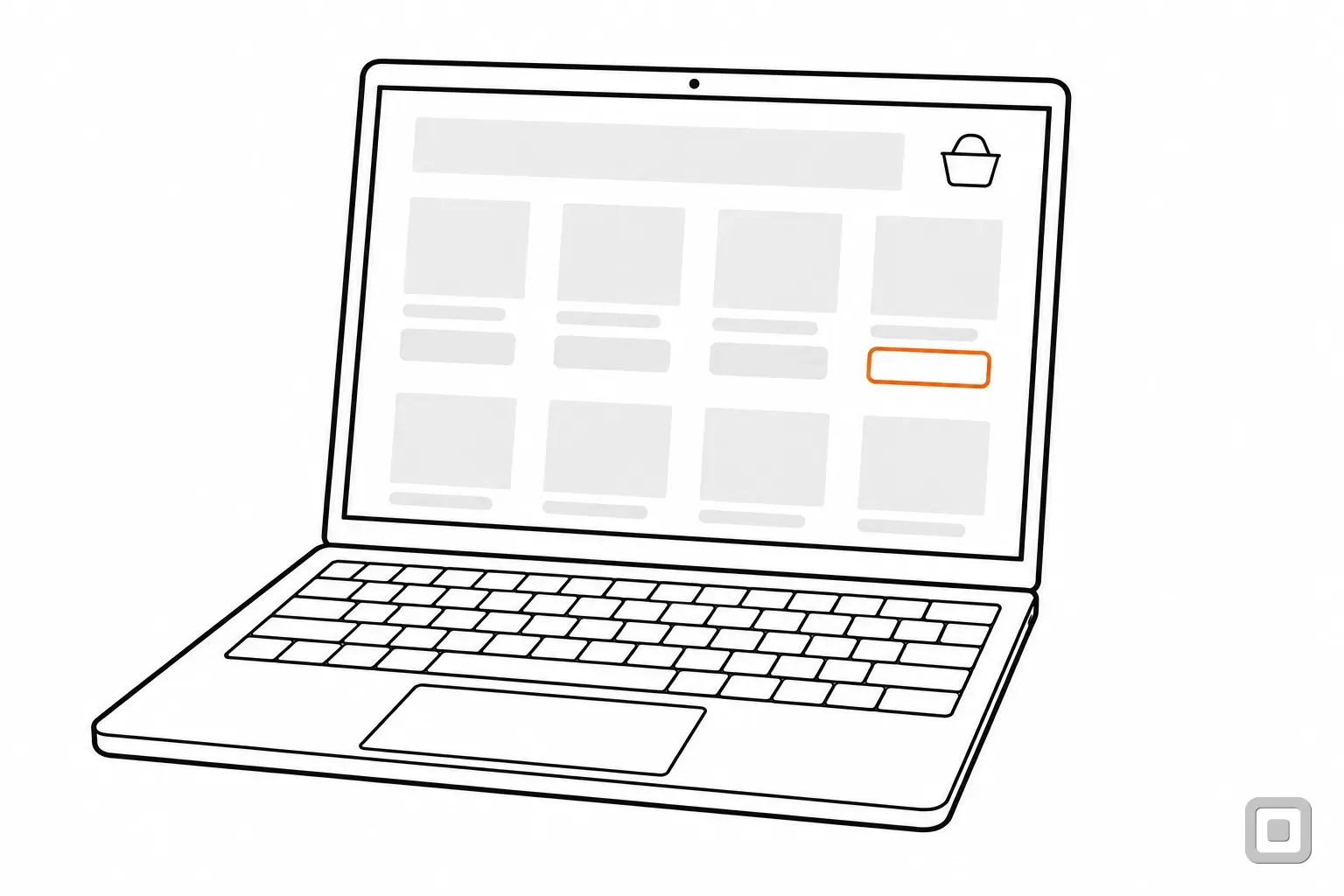
One product page, and who changes each part
- The themeMenu, search and cart iconKeyboard access, focus ring, button names
- YouProduct photosAlt text, written in the admin
- YouTitle, price and descriptionHeadings and words, in the product editor
- The themeSize and colour pickerLabels, and whether it works by keyboard
- YouColours of text and buttonsChosen in the theme's Colors settings
- The themeAdd to cart and the cart drawerWhere focus goes when the drawer opens and closes
- YouProduct videoCaptions and a transcript
- The appReviews, pop-ups, chat bubbleEach app's own code, added on top of the theme
- ShopifyCheckoutShopify's code; it publishes a report on it
The parts marked You are yours to fix today, in the Shopify admin and the theme editor. The rest go to the theme maker, the app developer or Shopify, with what you found and the criterion number.
Where the work sits in a Shopify store
A Shopify store is four things stacked on each other: the theme's code, the content and settings you enter, the apps you install, and Shopify's own checkout. A barrier can come from any of them, and each has a different person who can fix it. Shopify's own accessibility guidance for stores is honest about the limit of any list, including this one: following it "doesn't guarantee that your online store is fully accessible."
So this guide does not promise a compliant store, and no theme or app can either. It shows what a merchant controls, in the order that pays back fastest: the theme you start from, then your photos, colours and videos, then the apps, then what to keep on file about checkout.
Start with the theme, because it draws every page
The theme decides the code around your products: the menu, the filters, the variant picker, the cart drawer, the focus ring. To be listed in the Shopify Theme Store, a theme needs an average Lighthouse accessibility score of at least 90 across its home, product and collection pages, plus written rules on keyboard access, a visible focus state, labelled inputs and contrast. That is a floor, measured by an automated score, and a skip link is not on its list.
Our Shopify themes comparison reads six themes against what a theme controls, so it is not repeated here. Before you switch, spend five minutes on the theme's demo store with the mouse put away: press Tab from the top, open the menu, choose a variant, add to cart, and close the cart drawer. If you lose the focus ring, or cannot get out of the drawer, every page of your store will do the same. The focus order checklist keeps that walk honest.
If you edit the theme's code
Shopify's guidance asks that you never remove the keyboard focus style from any page element when you edit the stylesheet. The line that does it is usually outline: none, added to tidy up a button.
Alt text on every product photo
Product photos are yours, and they carry most of a shop's information. Shopify's help puts the field here: from your Shopify admin, go to Products, open the product, click a media item to open the Preview media page, click Add alt text, enter it, and click Save alt text. Shopify allows up to 512 characters and recommends 125 or fewer.
Images the theme shows, such as a home page banner or a collection image in a section, take their alt text in the theme editor instead: Online Store, Edit theme, the section with the image, then Edit on the image, and Save twice, once in the dialog and once for the theme.
What to write depends on what a shopper needs from the photo. For a speckled stoneware mug:
- Weak: "mug", or the file name, or the product title again.
- Better: "Stoneware mug in matte sand glaze with brown speckles, held in one hand to show its size".
- For each variant photo: say the colour or finish it shows, since that is why the photo is there.
That is 1.1.1 Non-text Content: a text alternative that serves the same purpose as the image. Our alt text examples cover logos, icons and charts too, and the alt text check tests one line before you paste it in.
Colours: the settings Shopify gives you
Colours live in the theme editor's theme settings, under Colors. Most themes group them as colour schemes (the Schemes section, with Add scheme); newer themes, such as Horizon 4.0.0 and later, use colour palettes. Either way you type a hex code or pick a colour, and Shopify's help page for these settings says nothing about contrast. Nothing stops a pale button with white text from going live.
Shopify's accessibility guidance sets the numbers: body text and button text at least 4.5:1 against their background, headings and other text from 24px up at least 3:1, and input borders and icons at least 3:1. The same rules hold for text laid over a banner or slideshow image. It also asks that links in text be underlined or styled some other way than colour. Check each scheme's pairs in the contrast check, or a whole palette at once in the palette check, and read use of colour for sale badges and stock dots that speak only in colour.
Product videos and captions
Shopify takes product video two ways: an uploaded file (up to 10 minutes and 1 GB, as .mp4, .mov or .webm) or a YouTube or Vimeo link. Its product media help, read today, says nothing about caption files for either.
Its accessibility guidance does: add closed captions for customers who are deaf or hard of hearing, give videos with dialogue a text transcript on the page or a linked page, and do not autoplay, or mute the sound if a video does. In practice that leaves three routes:
- Host it on YouTube or Vimeo and link it. Both take captions: Vimeo accepts SRT and WebVTT files, and YouTube lets you type captions as you watch or paste a transcript and sets the timings for you.
- Upload it with the words in the picture. Captions burned into the video cannot be turned off, but they reach every viewer. Check them for spelling like any caption.
- Put the words on the page. A short transcript under the description helps the shopper who cannot play sound at all.
A silent turntable video still needs something: under 1.2.1, video with no sound needs a text or audio alternative, which for a product spin can be one sentence saying what it shows. The caption requirements guide covers the rest.
Apps that add widgets
Every app that draws something on your storefront, a reviews block, a pop-up offer, a chat bubble, a size chart, brings its own code, and the theme maker cannot fix it. Test the page again after each one you install. The usual faults: a pop-up that keyboard focus cannot leave (2.1.2 No Keyboard Trap), a close button announced only as "button", star ratings drawn as pictures with no text, and a chat bubble parked over the focused link (2.4.11).
One kind of app needs a plain warning. An overlay is a third-party widget or toolbar script sold as making a site conform without changing its source.
The Federal Trade Commission alleged that accessiBe claimed its accessWidget plug-in could make any website WCAG-compliant when it did not. The FTC approved the final consent order on 22 April 2025, and it bars accessiBe from claiming its automated products can make any website WCAG-compliant, or keep it compliant over time, without competent and reliable evidence. The Department of Justice's web guidance says overlays, like automated checkers, need to be used carefully. A widget does not change the alt text in your admin or the code of your theme, so the fixes above still have to be made in the store itself. Our guide to accessibility overlays has the full record.
Checkout is Shopify's
Shopify publishes an ACR for its Checkout against WCAG 2.2 Level A and AA (report dated March 2026). Checkout is Shopify's, not the theme's. The report is candid: it marks a number of criteria as Partially Supports and says remediation is ongoing, and one of its remarks is that the PayPal, Venmo and Amazon Pay controls those companies supply may create barriers.
Two things follow for a merchant. Save the report with your records, since it is the honest answer when someone asks about checkout. And test the payment buttons and checkout apps you chose to add, because those are your choices even inside Shopify's page. If you need to describe your whole store, our accessibility statement generator writes a dated statement with the known gaps listed.
A store-owner checklist
Grouped by who makes the change, so the first group is the one you can finish this week. Print it, or copy it into an email to your theme maker or developer.
Store-owner checklist
Pre-filled for a small ceramics shop two weeks into the work. Tick what is true of your own store.
7 of 13 checked. 2 still to do in your own admin.
What a full checklist does and does not mean
Every line ticked means the parts you control have been checked. It does not make a store "ADA compliant": no body certifies that, and the Department of Justice has no detailed web rule for businesses. Before a big launch, or after a demand letter, a WCAG audit tests the store against WCAG 2.2 Level AA. This is general information, not legal advice. For your own situation, ask a lawyer.
Related
- Accessible Shopify themes comparedThemes judged on what a theme controls: skip link, visible focus, the cart drawer by keyboard, colour settings.
- Alt text examples (and how to write them)15 min read
- Contrast checkTwo colours in, the WCAG contrast ratio out, with AA and AAA words for text and controls.
- Accessibility overlays: what they do and what they don't8 min read